
Laptop Repairs Melbourne: What a Loud Fan or Overheating Means
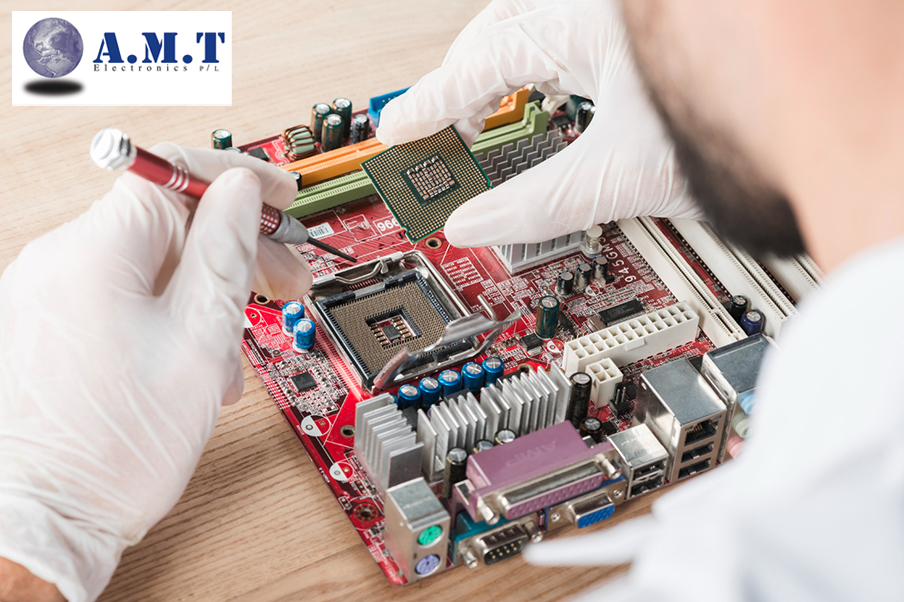
A laptop fan suddenly becoming noisy, running almost constantly, or stopping completely is usually a sign that something inside the device needs attention. The difficult part is determining exactly what is causing it.
Fan noise does not automatically mean the fan itself is faulty. Likewise, an overheating laptop may have a problem somewhere else in its cooling system. A device that becomes extremely hot or shuts down unexpectedly could be affected by a worn fan, degraded thermal paste, restricted airflow, a blocked heatsink or even software placing excessive demand on the processor.
Fixing only the obvious symptom without identifying the underlying cause can mean the original problem remains.
Understanding how your laptop cooling system works can make it easier to recognise warning signs and determine when professional laptop repairs or MacBook repairs may be required.
How Does a Laptop Cooling System Work?
Most people know that laptops contain a fan, but the fan is only one part of the cooling system.
The CPU and GPU generate heat whenever the laptop is operating, particularly during demanding tasks such as gaming, video editing or other processor intensive applications. Copper heat pipes transfer heat away from these components towards a heatsink.
The heatsink contains a series of fins that increase the surface area available for cooling. The fan then moves air through these fins and out through the laptop's ventilation openings.
Thermal paste is another important component. It sits between the processor and cooling assembly and fills tiny imperfections between the surfaces, helping heat move efficiently from the processor into the cooling system.
Over time, thermal paste can deteriorate. Dust can also accumulate around the fan and heatsink, restricting airflow. When cooling becomes less effective, the fan needs to work harder to keep temperatures under control.
This is why a noisy fan does not necessarily mean the fan needs replacing. The entire cooling system needs to be considered when diagnosing the problem.
Why Is My Laptop Overheating?
There are several reasons a laptop may start running hotter than normal.
Common causes include:
- Dust blocking the cooling system
- Restricted ventilation
- Deteriorated thermal paste
- Software using excessive CPU resources
- A damaged or worn fan
- Problems with the heatsink or heat pipe
- General ageing of the cooling system
The first step is identifying which of these issues is responsible rather than assuming the fan is the problem.
Why Is My Laptop Fan Running So Loud?
Laptop fans are designed to increase their speed as internal temperatures rise.
When the CPU or GPU becomes hotter, temperature sensors communicate with the system controller, which increases fan speed to move additional air through the cooling system. During demanding workloads, this is completely normal.
The concern is when a fan remains extremely loud during simple activities such as browsing websites, writing documents or attending a video call.
When this happens, the laptop may be generating more heat than expected or struggling to remove that heat efficiently.
Dust Can Restrict Airflow
Dust is one of the most common reasons older laptops develop cooling problems.
Air enters the device through its ventilation openings and can carry dust and fine particles with it. Over time, this material can collect around the fan blades, heatsink fins and exhaust areas.
A small amount of dust may have little noticeable effect, but heavier buildup can significantly restrict the movement of air through the heatsink. The fan may then operate at a high RPM without actually moving enough air across the cooling fins.
This can be particularly relevant for laptops used in environments where dust and fine particles are present, including construction and hospitality workplaces across Melbourne. However, ordinary office environments can also result in dust accumulation over several years.
Old Thermal Paste Can Reduce Cooling Performance
Thermal paste does not last forever.
Under normal conditions, thermal paste can remain effective for several years, although its lifespan varies depending on the compound, device and operating conditions. As it dries out or deteriorates, heat transfer between the processor and cooling assembly becomes less efficient.
The result can be higher CPU temperatures, increased fan activity and reduced performance.
A laptop that previously operated quietly may eventually begin running its fan more frequently, even when performing relatively basic tasks.
Replacing degraded thermal paste as part of a proper internal clean can restore cooling performance when this is the underlying issue.
Background Software Can Drive Temperatures Higher
Not every overheating problem is caused by hardware.
A program stuck in a loop, malware, an inefficient application or too many demanding browser processes can cause the CPU to work much harder than expected.
Operating system tasks can also temporarily increase processor usage. For example, macOS Spotlight may perform indexing after certain updates or changes.
Both Windows and macOS provide tools for identifying processes that are consuming significant CPU resources.
On Windows, Task Manager can show CPU usage by application and process. On macOS, Activity Monitor provides similar information.
If a particular process is consistently using a very high percentage of CPU during otherwise light workloads, investigating the software may be more appropriate than immediately replacing hardware.
A Worn Fan Can Produce Unusual Sounds
Laptop fans contain moving components that can wear down over time.
A fan with bearing wear may produce a humming, buzzing, rattling or irregular mechanical sound. This differs from the normal sound of air moving through the cooling system.
As the fan spins faster, bearing noise can become more noticeable. In some cases, a worn fan may continue operating for a considerable period, while in others, failure can happen relatively quickly.
Once a fan begins producing unusual mechanical noises, it is worth having the cooling system inspected rather than waiting for the fan to stop completely.
Replacement may be the appropriate solution if the fan itself is confirmed to be worn or damaged.
What Is Thermal Throttling?
Thermal throttling is a built in protection mechanism found in modern processors.
When the CPU reaches a temperature threshold, the system can reduce its clock speed to reduce heat generation. This protects the processor, but it also reduces performance.
For the user, thermal throttling can appear as sudden sluggishness. Applications may become slower, video editing performance can drop and tasks that previously completed quickly may take noticeably longer.
The laptop may also feel unusually hot around the keyboard or underneath the chassis.
The important distinction is that thermal throttling is generally a symptom rather than the original fault. Something is causing the cooling system to struggle under load.
That could be dust, thermal paste, a failing fan, restricted airflow or another cooling issue.
Tools such as macOS's powermetrics command or HWiNFO64 on Windows can provide more detailed information about processor temperatures and thermal behaviour.
If a laptop is repeatedly reaching very high temperatures during relatively moderate workloads, the cooling system should be investigated.
Can a Laptop Fan Be Replaced?
In many laptops and MacBook models, replacing a faulty cooling fan is possible.
The difficulty of the repair depends heavily on the design of the particular device. Some laptops provide reasonably direct access to the cooling assembly, while others require significant disassembly before the fan can be reached.
A professional repair involves more than simply installing a replacement fan. Technicians need to work carefully around internal connectors, cables, circuit boards and other delicate components.
After the repair, the device should be tested to confirm that the replacement fan operates correctly and that temperatures remain within an appropriate range.
When the laptop is otherwise in good condition, replacing a failed cooling component can be a practical way to extend its useful life.
How Can You Prevent Laptop Cooling Problems?
Simple habits can help reduce unnecessary stress on your laptop's cooling system. Looking after your device can also make it easier to identify problems before they become more serious.
Keep the Vents Unblocked
Avoid covering the laptop's intake and exhaust openings during use. Restricted ventilation can make it much harder for the cooling system to remove heat.
Use a Hard, Flat Surface
A desk or other hard, level surface generally provides better airflow than a bed, couch or other soft surface that may obstruct ventilation.
Keep Dust Under Control
Dust can accumulate internally even when the outside of the laptop looks clean. If the device has significant buildup, professional internal cleaning can help restore airflow.
Pay Attention to New Sounds
Rattling, grinding, clicking or unusual buzzing from the fan should not be ignored. Changes in fan noise can provide an early warning of mechanical wear or another cooling issue.
Don't Ignore Persistent Heat
A laptop that is constantly hot or repeatedly slowing down under normal workloads should be investigated.
Addressing cooling problems early can help prevent ongoing performance issues and reduce the risk of additional component stress.
Laptop and MacBook Repairs in Melbourne
A loud fan, excessive heat or unexpected shutdown does not always point to the same fault. The most effective approach is to identify what is actually causing the cooling problem before deciding on a repair.
If your laptop or MacBook is running hotter than usual, the fan is constantly running, or you are hearing unusual noises, professional diagnosis can help identify the underlying issue.
At AMT Electronics, our technicians can assess the cooling system and explain what is causing the problem before recommending the appropriate repair.
Contact us or visit us during business hours. No appointment is required.
Disclaimer
This article is provided free of charge for public information. We do not guarantee, and accept no legal liability for, the accuracy, reliability, currency, or completeness of the content or any linked material. Users should apply their own judgment and verify the material’s relevance to their needs. This article is a general summary and not a substitute for legal or professional advice. Users should seek appropriate advice for their circumstances. Any third-party views expressed do not necessarily reflect ours or imply endorsement.